Test compatibility before filling the pages
To check whether you can personalize your newspaper with Canva Free, separate the supplied template from elements and features you add later. A template’s stated free-account compatibility does not mean every library photo, font, or export control is free. Read the product page first, then test your own working copy before entering all the family stories.
Run a small trial: open the template, replace one text passage and one photo using your own files, and inspect the available download choices. This does not replace checking the final newspaper, but it can expose a blockage before you fill twelve pages. Note which account you use. An active subscription on a different account does not establish what is available in the account holding this project.
Identify what caused a payment prompt
When a warning appears, record the action immediately before it. Did you add a library image, change a font, use a particular tool, or select a download control? Read Canva’s current availability and payment information. Icons, labels, and entitlements can change; your account information and current official help are more useful than an old screenshot.
Do not assume the entire template caused the prompt. In a test copy, revisit the last change to isolate the issue. If an added element is responsible, look for an alternative available to your account. If the prompt appears without any addition, save the message and ask the seller for clarification. Do not enter payment details simply to continue before understanding the charge and whether you need the feature.
A four-line account check
Copy this checklist: changed text or font; added image or element; special tool used; requested export control. For each line, write “available,” “replace,” or “needs checking,” followed by your chosen solution. The list tracks changes that may introduce a new requirement. It is not a universal inventory of Canva Free or Pro capabilities.
Fictional example: Jordan swaps a family photograph for a library image that triggers a payment prompt. Jordan keeps the layout, removes the addition, and restores the original photograph with the people’s permission, then tests the download again. The issue came from an image choice, not the newspaper’s page count. Check the latest modification in the same way before rebuilding a finished page or purchasing a subscription.
Replace an element and recheck the layout
Choose a substitute that serves the same purpose: your own photograph for a memory, a simple shape around a sidebar, or a font available to your account. After replacing it, inspect text width, line breaks, and readability. Two fonts at the same stated size can occupy different amounts of space. A vanished payment warning does not prove that the replacement fits.
Keep a copy before changing a page that someone has already reviewed. If a relative sends a file, ask whether you can use it in the newspaper and check the relevant rights. Importing a file yourself does not automatically make it free to reuse. Account availability and permission to distribute an image are separate decisions. Keep both on your project checklist instead of treating an upload as clearance.
Check the actual export, then decide
Canva’s file-type help describes PDF Print as a print-oriented option. Some controls, including CMYK output and compression, depend on the account. If your printer requires a control you cannot access, ask whether another workflow is acceptable before paying for a feature. A paid export setting will not restore detail missing from a small photograph or repair clipped text.
Open the downloaded PDF and inspect every changed page. Look for unexpected elements, warnings, or font changes. If the cause remains unclear, send support the exact message and the relevant line from your checklist. For dimensions, requested settings, and file handoff, use the existing public printing guide listed in the sources. Decide about a subscription after diagnosing the requirement rather than using an upgrade as the first troubleshooting step.
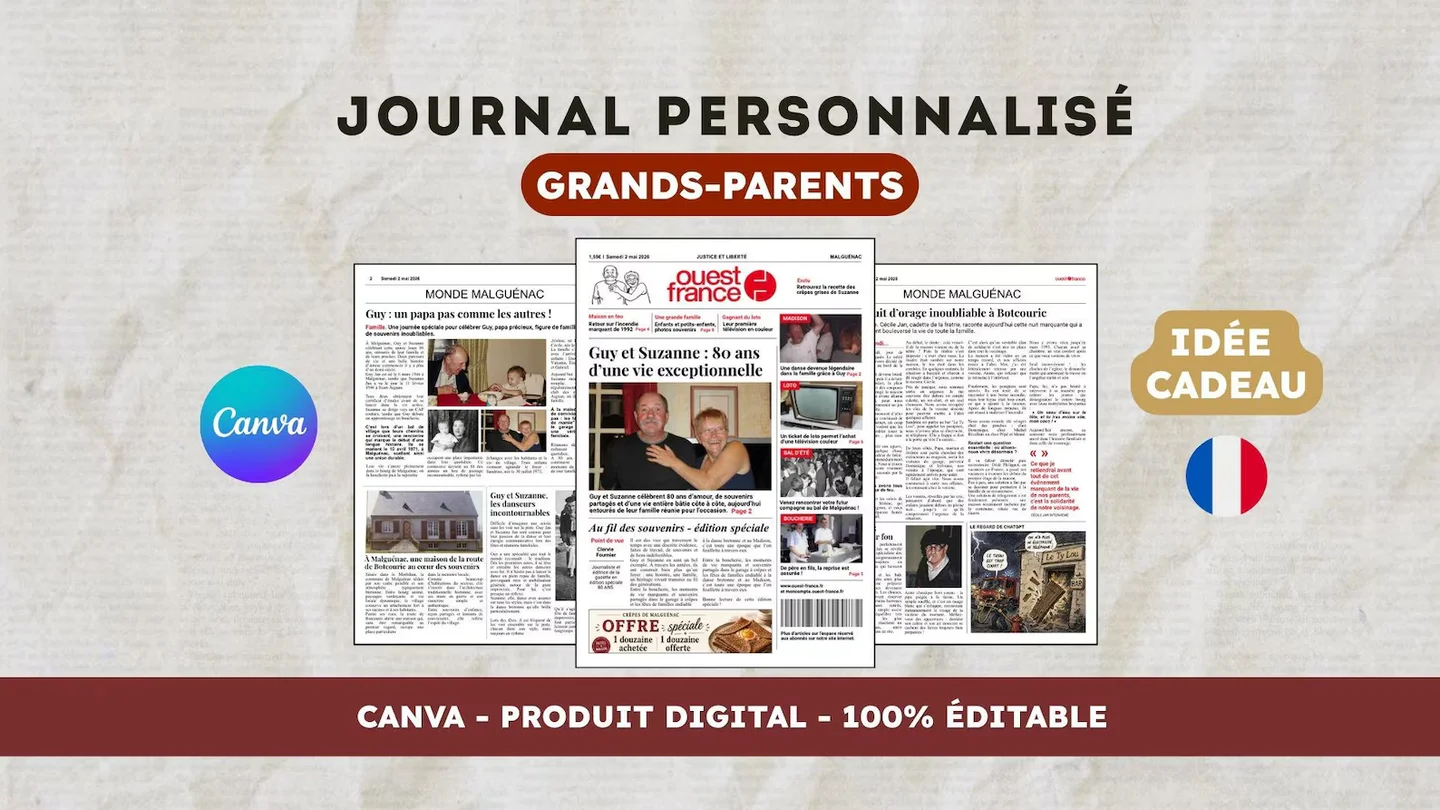
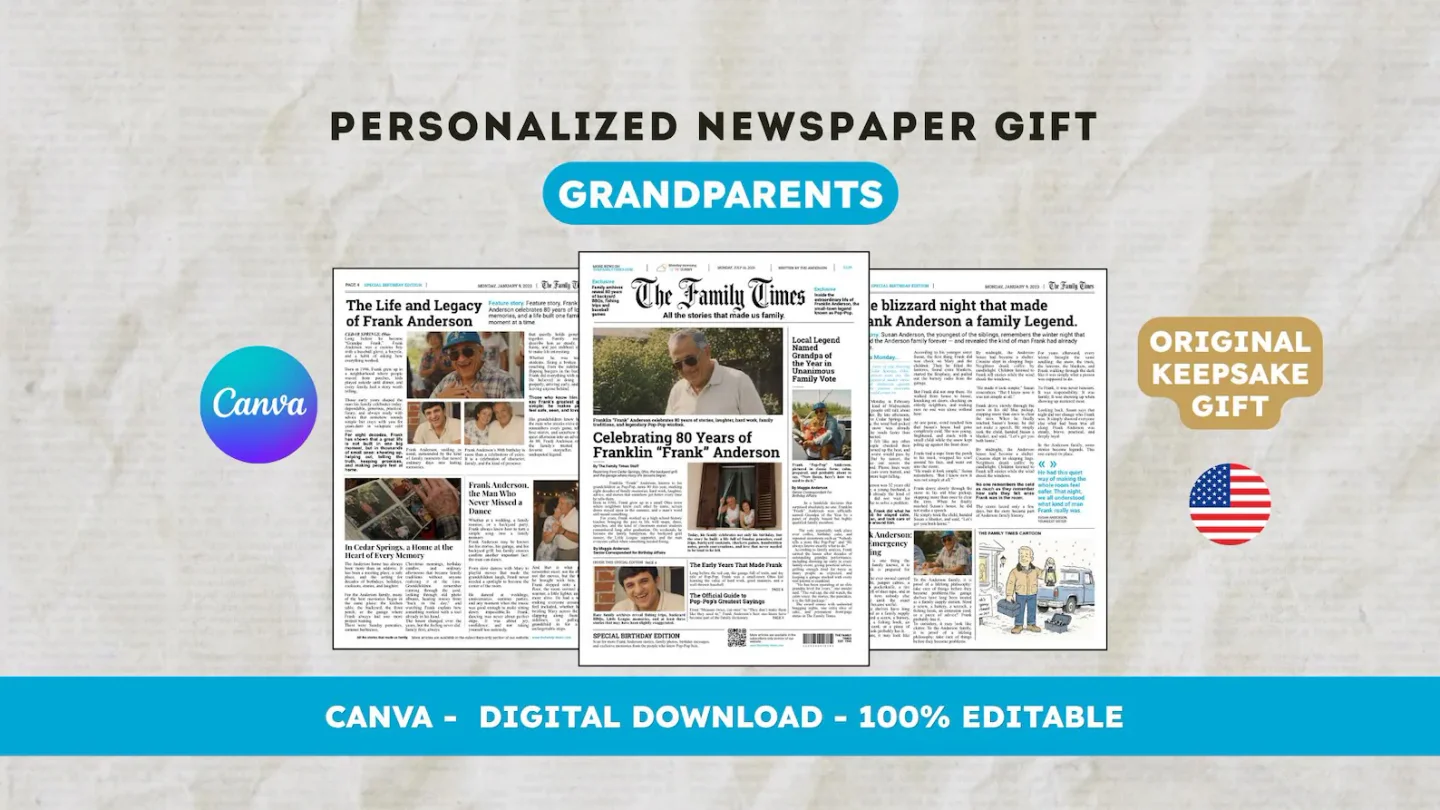
For an English layout, view the 22routes The 80th birthday newspaper, a 12-page digital Canva template. Check its actual preview and editable age and occasion labels first; consider changing them only if the design fits your intended project. The grandparents template starts in French. Printing and shipping a paper newspaper are arranged separately. Product pages appear in the sources so you can check the template language.
Frequently asked questions
01Do I need Canva Pro to add my own photos?
Check the template’s stated compatibility and test your account. Adding your own photos does not establish access to every other feature or export control.
02What if an element requires payment?
Identify the element or feature involved. Replace the addition with an available option, then check layout and export before deciding whether a subscription is needed.
Have another newspaper in mind?
Suggest the title. We’ll email you if a template becomes available.