Identify the frame before replacing the photo
Before replacing a photograph in Canva, check whether you have selected the image, its frame, or a group of objects. A frame defines a visible area; an independent image has its own shape. Selecting the wrong object can move the whole composition instead of changing the picture. Work in a copy and inspect the selection before deleting anything.
Find three things: the edges of the photo slot, the subject in the picture, and its caption. A caption left behind after replacement must still describe the new photograph. Exact controls vary by app and editor version. Use the selection, replacement, and cropping tools shown in your current workspace rather than assuming the same gesture produces the same result on every device.
Position the subject before filling the edges
Use an original image you have permission to include. Position the main subject before trying to fill every edge. In a group photograph, check everyone, including people near the corners. In an object photograph, preserve the detail that carries the story: an inscription, a hand, or a tool can matter more than the background.
Canva distinguishes cropping, which changes the visible portion, from resizing, which changes dimensions. Enlarging an image within a slot may push faces or important details outside the visible area. Do not approve a crop solely because it fills the rectangle. Compare it with the source file and ask whether readers can still understand why this photograph belongs beside the story. Check the caption at the same time.
A five-check replacement sequence
Use this sequence: identify the selected object; replace the image in the intended slot; reposition the subject without moving the whole page; inspect the edges and caption; check the exported PDF at reading size. If the photograph will not fit, compare its orientation with the frame. A vertical portrait and a wide horizontal slot cannot naturally show the same amount of the scene.
Fictional example: a photograph of three cousins fits into a wide frame, but the face on the right disappears. Before enlarging it further, Alex centers the group. If no crop retains all three faces, Alex chooses another photograph or a more suitable slot rather than stretching people to fit. The final choice serves the memory, not just the shape of the placeholder.
Cropping is not redaction
Do not use a Canva crop as a privacy measure. Official download help warns that an exported PDF can contain the original uncropped photograph. An address, document, or person hidden from view may therefore remain extractable from the file. Covering an area with a rectangle is not evidence that the underlying information has been removed either.
Before distribution, remove the image or recreate a source file that genuinely excludes the sensitive content, then replace the old image in the layout. Keep a private original separately if needed. If you cannot verify removal, choose another picture. Apply the same care to screenshots you send for support: cropping the newspaper illustration does not give you permission to distribute the full original photograph or other private content in the document.
Review the photograph in the exported page
Export a test page and open the downloaded file. View it at the intended reading size, then enlarge questionable areas. Check faces, sharpness, caption, and proximity to the page edge. A tiny preview can hide a problem; extreme zoom alone does not show how the photograph will look on paper. Consider a physical proof of the troublesome page when practical.
Ask your printer about content near the trim rather than enabling bleed by default. PDF Print does not restore detail absent from the original photograph. If the picture still looks weak or the crop is too tight, make it less prominent or choose a better source. The existing photo preparation guide in the sources complements this diagnostic by helping you choose files before layout begins.
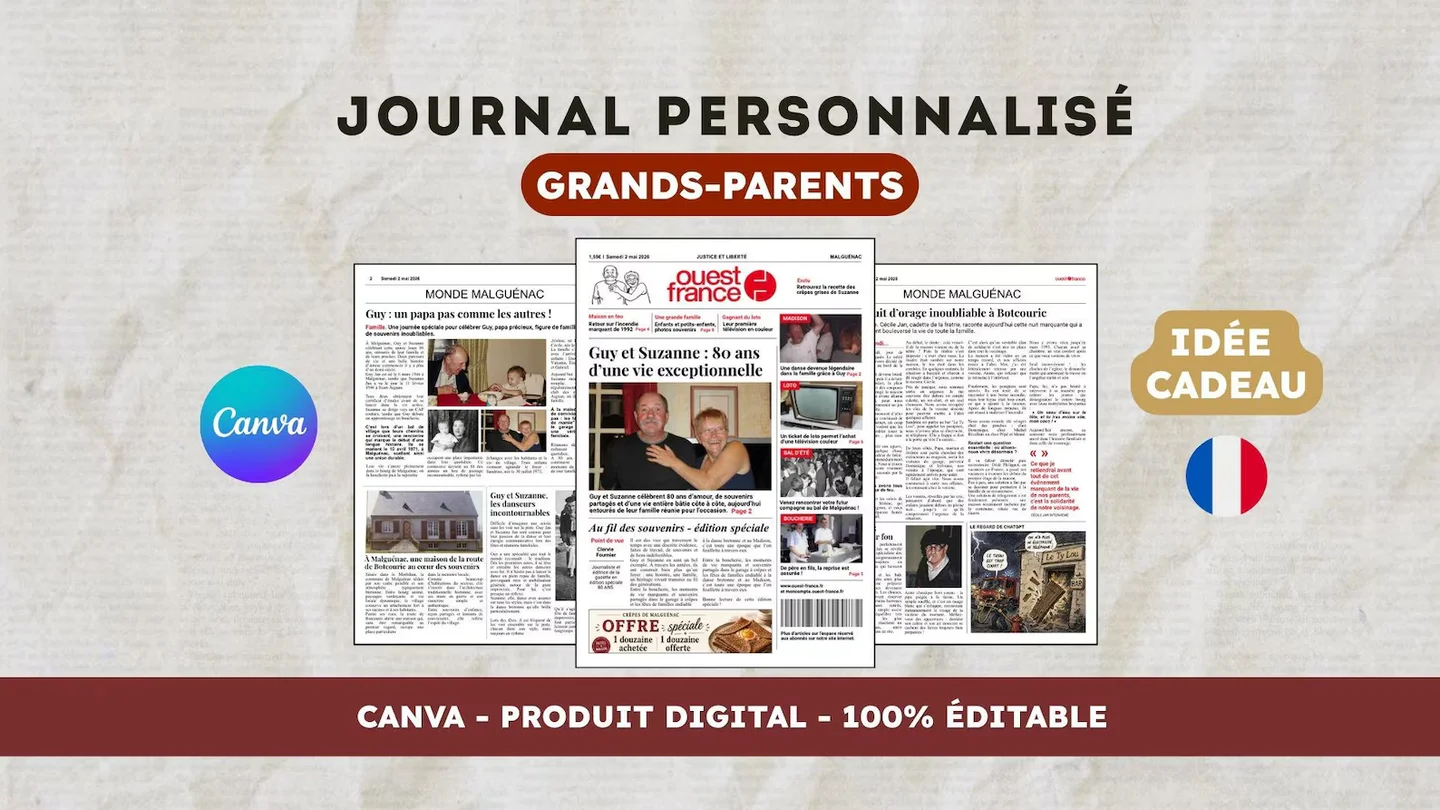
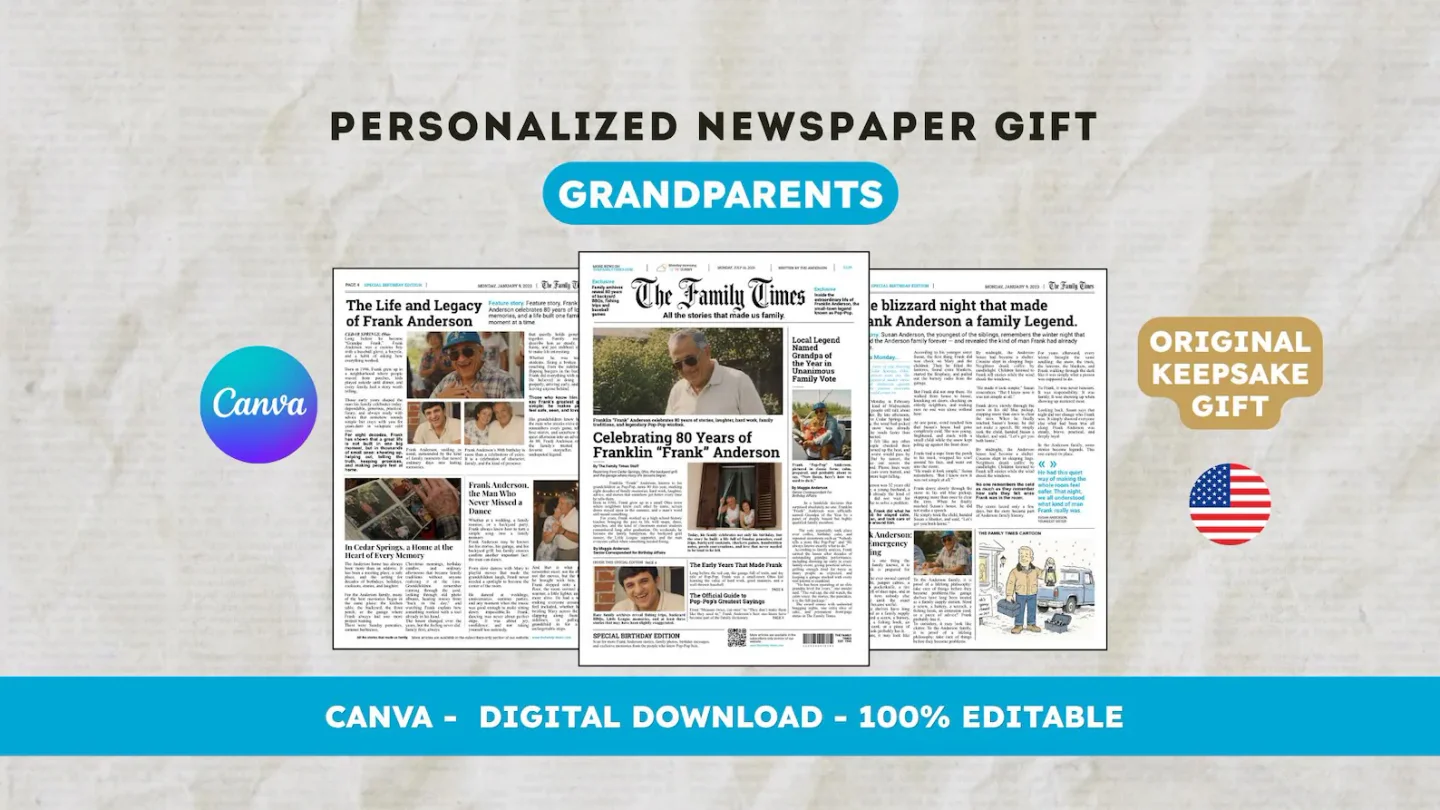
For an English layout, view the 22routes The 80th birthday newspaper, a 12-page digital Canva template. Check its actual preview and editable age and occasion labels first; consider changing them only if the design fits your intended project. The grandparents template starts in French. Printing and shipping a paper newspaper are arranged separately. Product pages appear in the sources so you can check the template language.
Frequently asked questions
01Does cropping protect private information?
No. An original uncropped image may remain inside a PDF. Remove or recreate sensitive content before distribution, then replace the image in the newspaper.
02What if all the faces will not fit?
Reposition the photo, use a suitable slot, or choose another image. Do not stretch faces or cut someone out simply to fill the frame.
Have another newspaper in mind?
Suggest the title. We’ll email you if a template becomes available.