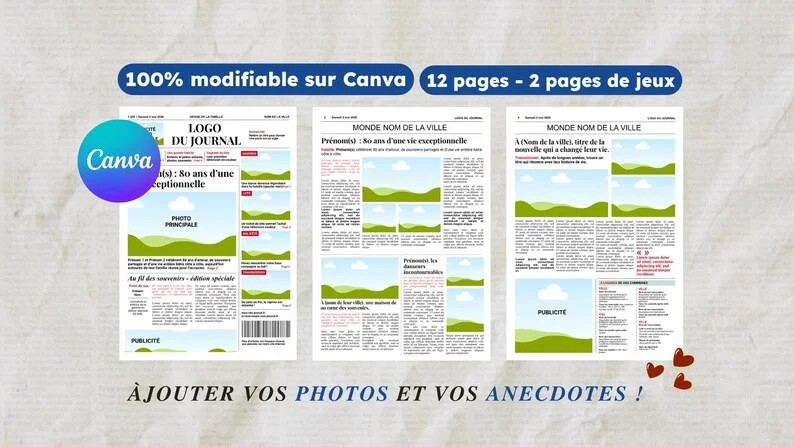
What should you gather before editing in Canva?
Before opening your Canva newspaper template, gather original photos, captions, a few stories and messages from family members. Check the template language as well. Keep the writing in a separate document so you can correct names, compare pictures and agree on the content before fitting it into a layout.
Before starting your newspaper, make one folder for pictures and one document for text. It saves searching through several family chats when you are halfway through a page. Use simple file names with a person, place or occasion so you can find things again.
Ask for the original photo where possible, rather than a screenshot. Keep an untouched copy of every image. For a printed photograph, take time to scan it or photograph it flat, without reflections. Open the result at a larger size and check that the faces are clear.
Choose photographs that have a story
A group photograph does a different job from a portrait. Choose a clear portrait to introduce the person, then vary the places, years and occasions. An imperfect picture may still deserve a place if it tells a story the other photographs do not.
Write a short caption alongside each file name: who is there, the location and the date if you know it. When several pictures are almost identical, pick one to start with. You can add more after the first pages take shape, without having to fit every photograph into the layout.
Write the story before fitting the box
Draft your memories in the text document. A headline, a short paragraph and a caption make a useful starting point. Tell the reader what happened, then why you remember it. Try not to begin every page with the same introduction or birthday greeting.
Keep each family member’s voice in their message. Correct a spelling mistake where needed, but do not turn every note into a formal speech. Gather the small details too: the birthday date, the spelling of names and the name that should appear beneath each message.
Which file do you download, edit and print?
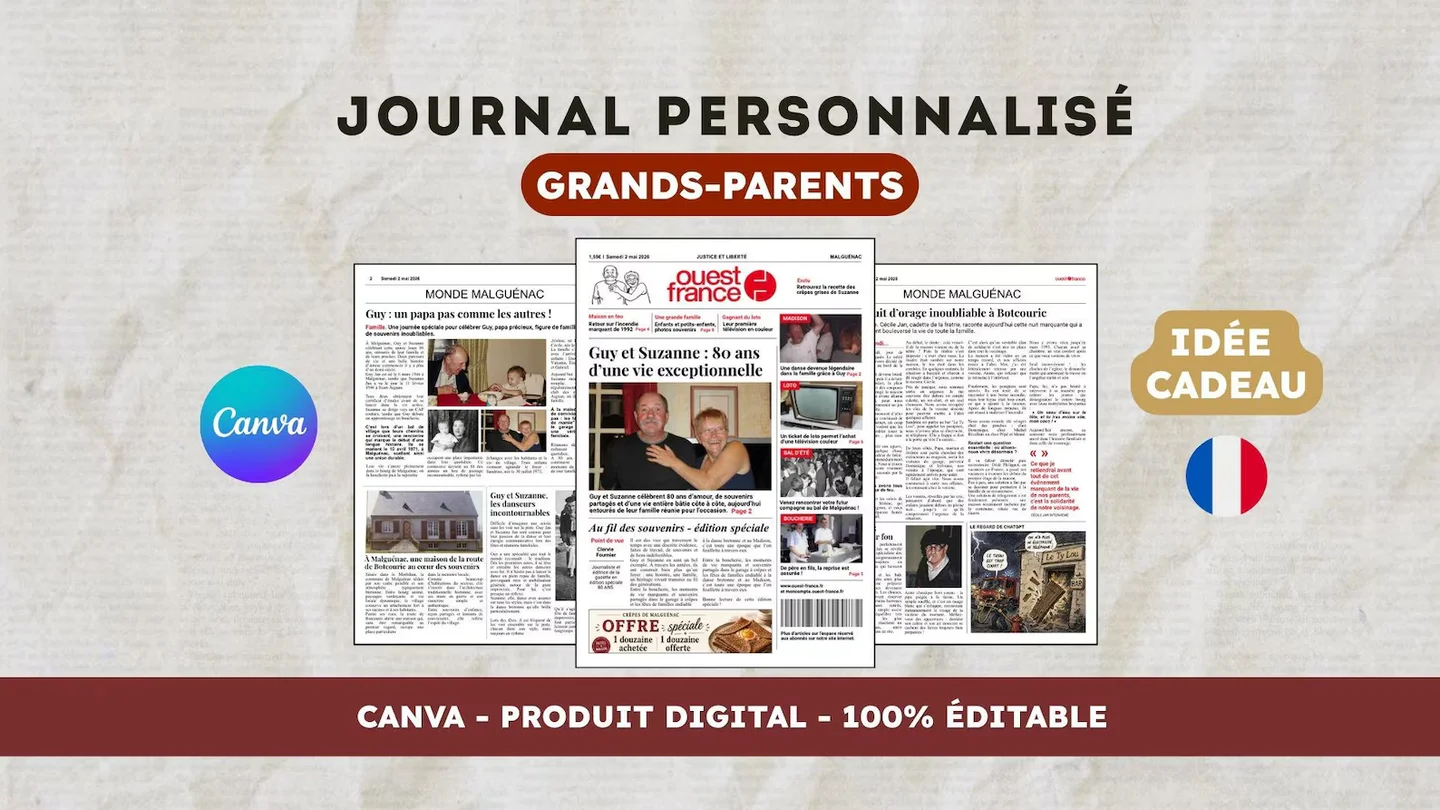
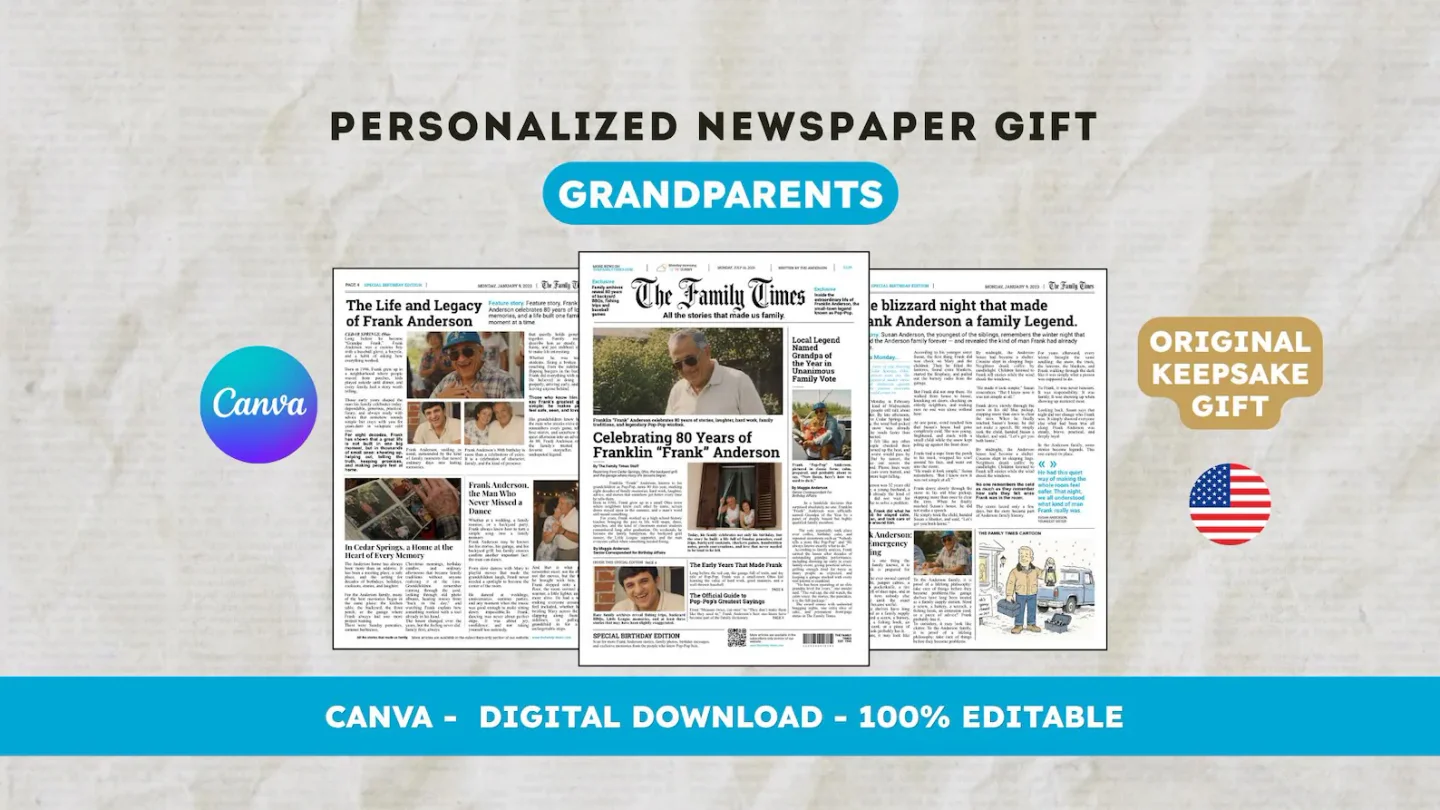
The purchased download is not your finished newspaper. The French 22routes products provide a PDF with the guide and template access. The English products provide a ZIP containing a guide and an example. Open the guide first and follow its instructions to access the template in Canva; do not treat the sample as your personalized gift.
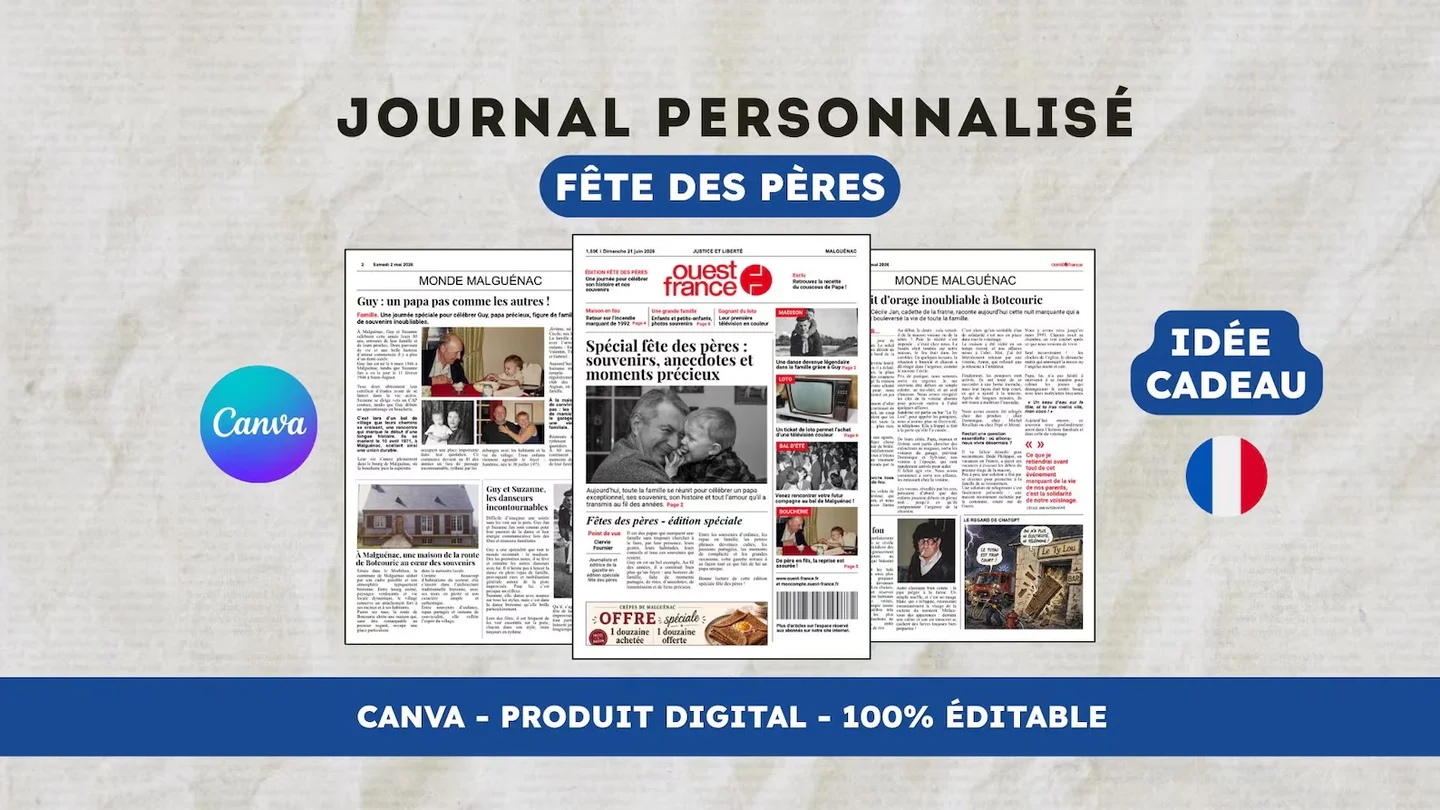
Edit your newspaper in Canva, then export the finished design for printing. Do not send the access guide or an untouched example to the print shop. If you choose the French Dad template, its text starts in French even when the website is in English. Replacing that text is part of your editing work.
Keep a list for the final read-through
In Canva, replace the example content in your chosen template a section at a time. Once the pages are ready, ask someone who has not worked on them to read the whole newspaper. They are more likely to spot a missing name, a misplaced caption or a story that needs context.
Before exporting, check the small sidebars and final pages as well as the front page. Look for leftover example text and empty photo spaces. Then read your printer’s instructions: the file you send still needs to meet its requirements, even when the newspaper looks finished on screen.
Have another newspaper in mind?
Suggest the title. We’ll email you if a template becomes available.